Stage the rooms buyers study
Prepare living rooms, bedrooms, dining rooms, offices, and other interior spaces with furniture that fits the selected use.
For agents, photographers, and listing teams
Add furniture and decor to empty-room photos in seconds. Show buyers how a space can work while keeping the original room available for comparison.
No signup for the first eligible photo. Review and disclose edited images before publishing.
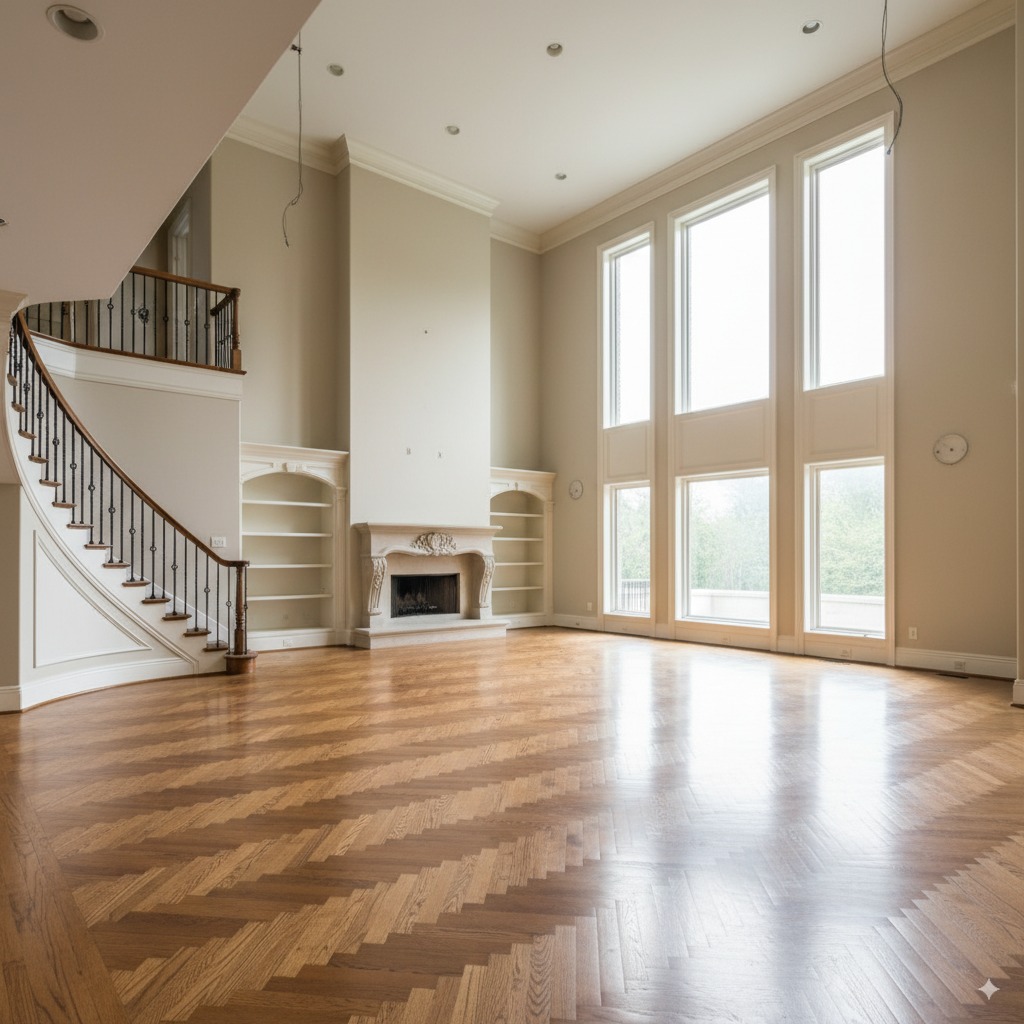 Original
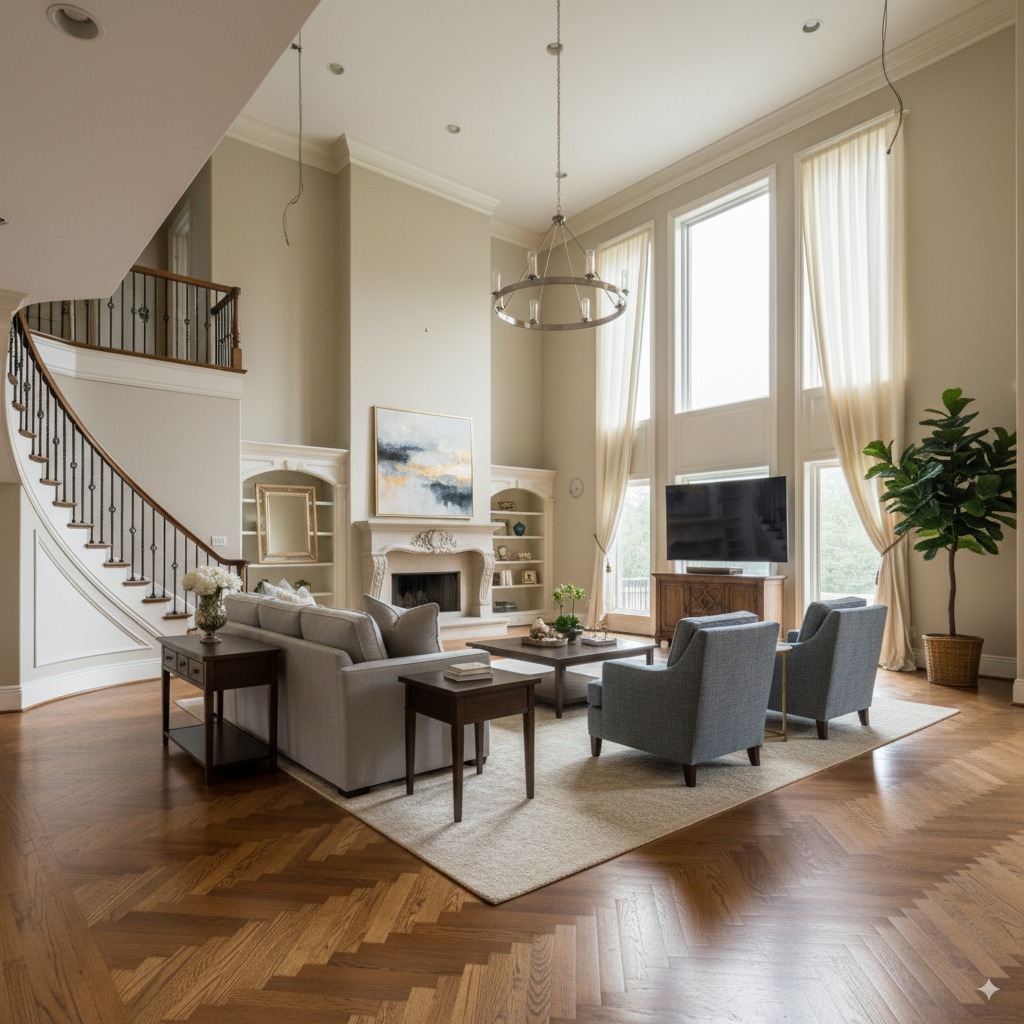 Staged
The empty-room problem
An empty room can be hard to read from a listing photo. Virtual furniture gives viewers a practical reference for layout, scale, and room purpose. Keep the unstaged photo in the listing set so buyers can compare both versions.
Prepare living rooms, bedrooms, dining rooms, offices, and other interior spaces with furniture that fits the selected use.
Choose a direction that suits the property rather than forcing the same furniture style into every home.
Upload the source photo, select virtual staging, and review the generated image before using credits for the final result.
Use before-and-after images to make the edit clear and follow your MLS, brokerage, and advertising disclosure rules.
Before and after
Original
Staged
A furnished layout helps viewers see where seating, lighting, and circulation could fit.
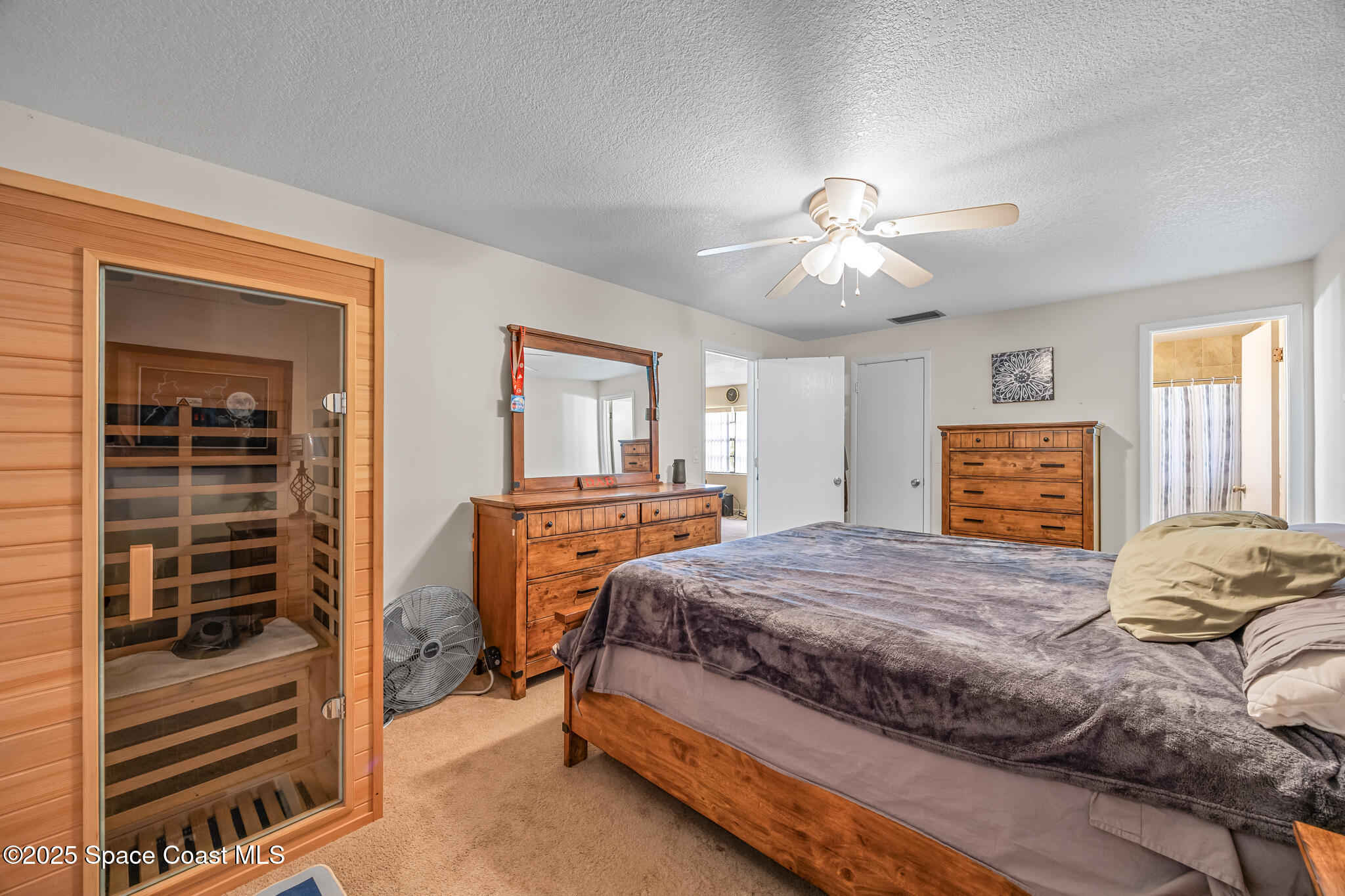 Original
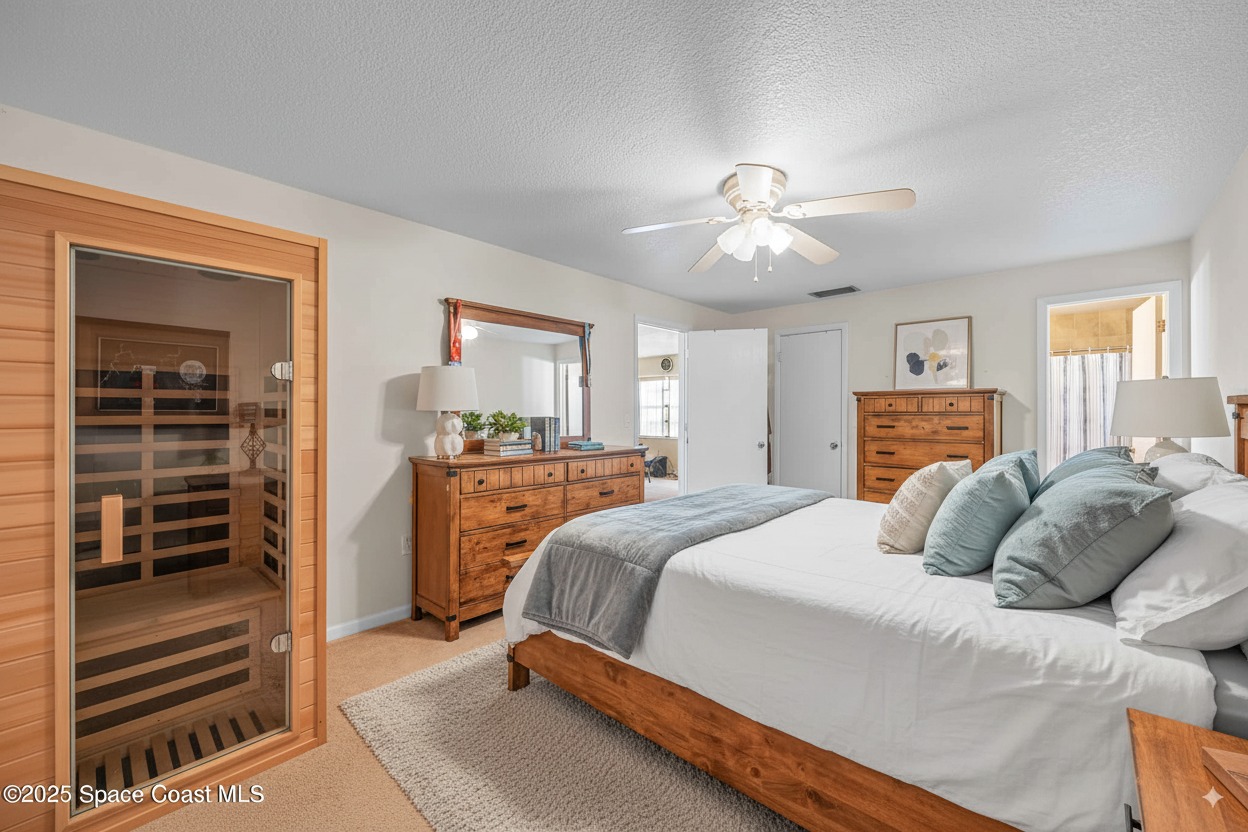 Staged
A staged bed and supporting furniture make the room's likely use easier to understand.
How it works
Start with a clear, authorized photo that shows the walls, floor, windows, and existing light.
Select the room and staging direction. The AI creates a furnished version for review.
Check the output against the property, download the approved image, and label it when required.
Questions
AI virtual staging adds digital furniture and decor to a photo of an empty room. The original structure remains visible while the furnished version helps buyers understand the room's possible use and scale.
Yes. You can upload and process one eligible real estate photo without creating an account.
Many MLS systems, brokerages, and advertising platforms require clear disclosure. Review the rules that apply to your listing and label edited images when required. Our virtual staging disclosure guide covers the main considerations.
Virtual staging should present possible furniture and decor without misrepresenting permanent features or hiding defects. Review each result against the source photo before publishing.
ListingEnhancer is built for real estate agents, photographers, brokerages, property managers, and listing teams working with authorized property photos.
Upload one eligible listing photo and see how the space reads with furniture. No signup is required for the first trial.